 widgemate
How to create a contract, invoice or act from a Kommo lead in Google Docs
A contract, an invoice or an act of work can be made from a Kommo lead in seconds: your Google Docs document becomes a template, and the client's name, the amount, the details and the products come from the lead by themselves. Here is how to prepare the template and set up creation.
What you need
- A Kommo account with admin rights – to install the Google Docs widget.
- A Google account with Google Drive for the templates and finished documents.
- A Google Docs document to turn into a template: your contract, invoice or act of work.
Step 1. Connect Google
Install the widget from the Kommo marketplace with the button on its page and allow access. On the widget page connect Google and give consent in the Google window – the page shows which account is connected.
Then choose the root folder on Google Drive for the documents – any folder, a shared company drive included – or create a new one.
Step 2. Make a template
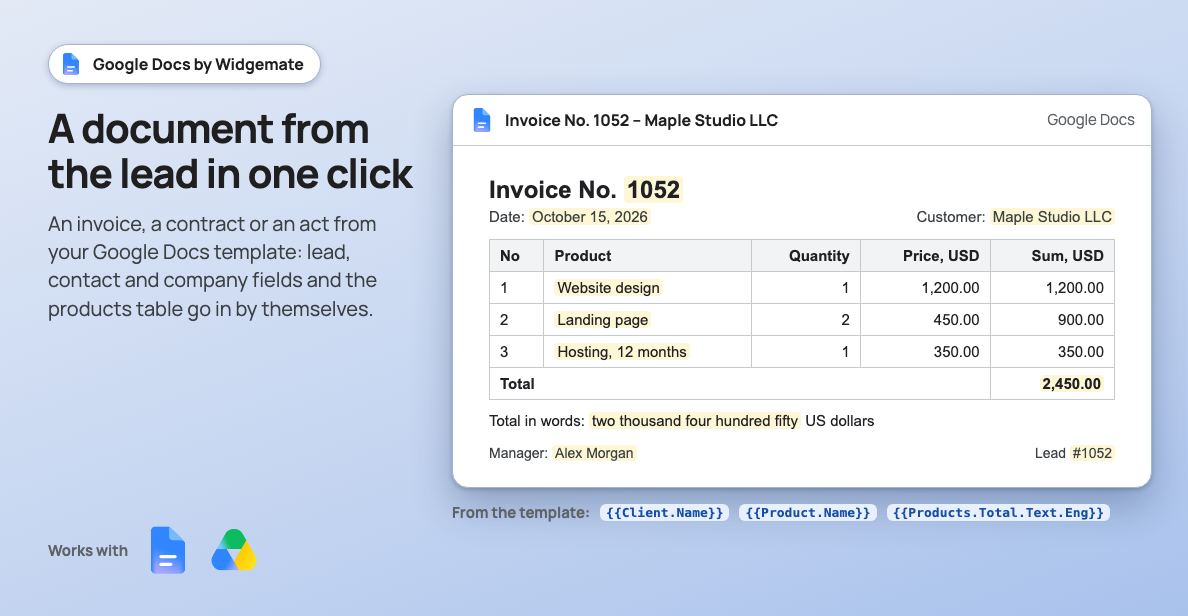
Open your document in Google Docs and replace the changing parts with variables in double curly braces: the client's name, the lead number, the amount, the date. A variable looks like {{Lead.Name}}.
You don't have to type variables by hand. On the Variables tab the builder writes them for you: choose where the value comes from (lead, contact, company, products) and how it is written – for example, the sum in words – and copy the ready variable into the document.
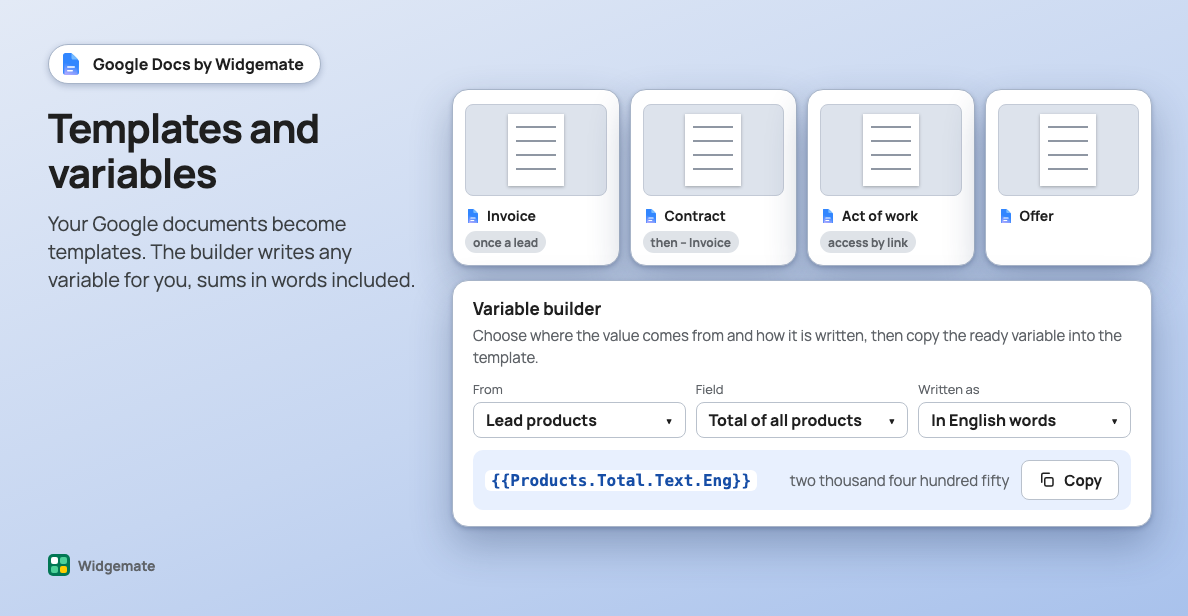
Then add templates on the widget page: pick the document in the Google window – it becomes a template. You can have several: a contract, an invoice, an act of work, an offer. With no templates yet, start from a sample: the widget creates a ready template you can change to suit you.
Step 3. The products table
For an invoice or an act, make a table in the template: a header row and one sample row with product variables, such as {{Product.Name}}. The builder's Products source lists all of them, the totals included.
The widget repeats the sample row for every product of the lead in the Kommo order and keeps its formatting. With no products in the lead, the sample row is removed and the card shows a warning.
Step 4. Folders on Google Drive
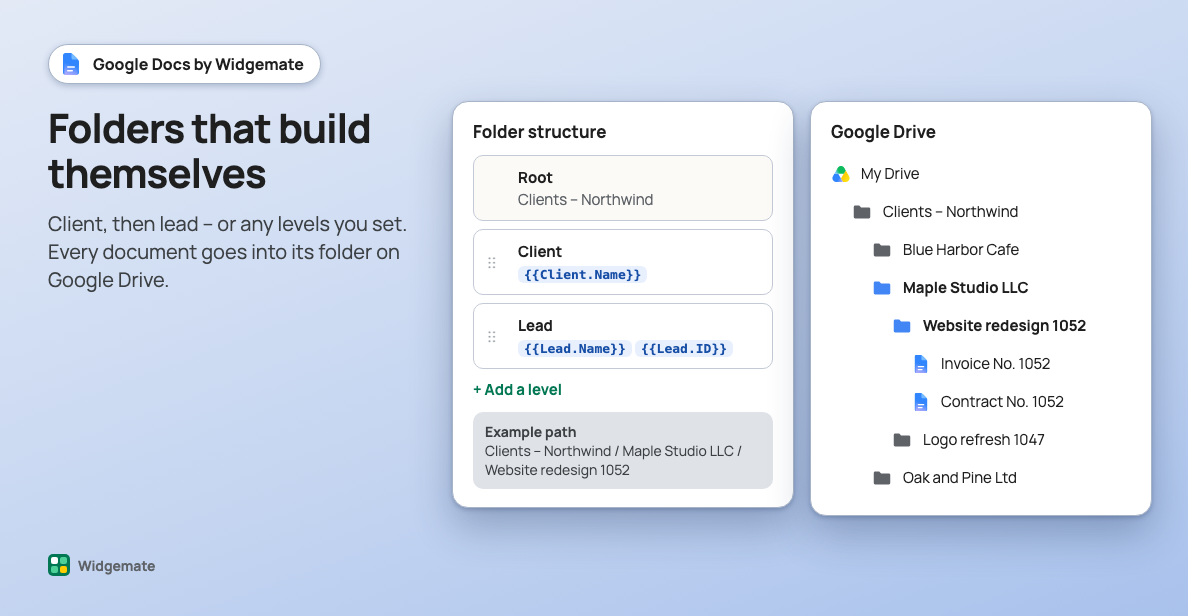
Set the folder structure: for example, the client and the lead inside it. Each document goes into its folder, and folders are created by themselves. If you want, the link to the lead, contact or company folder is written to a Kommo field.
Step 5. Create a document
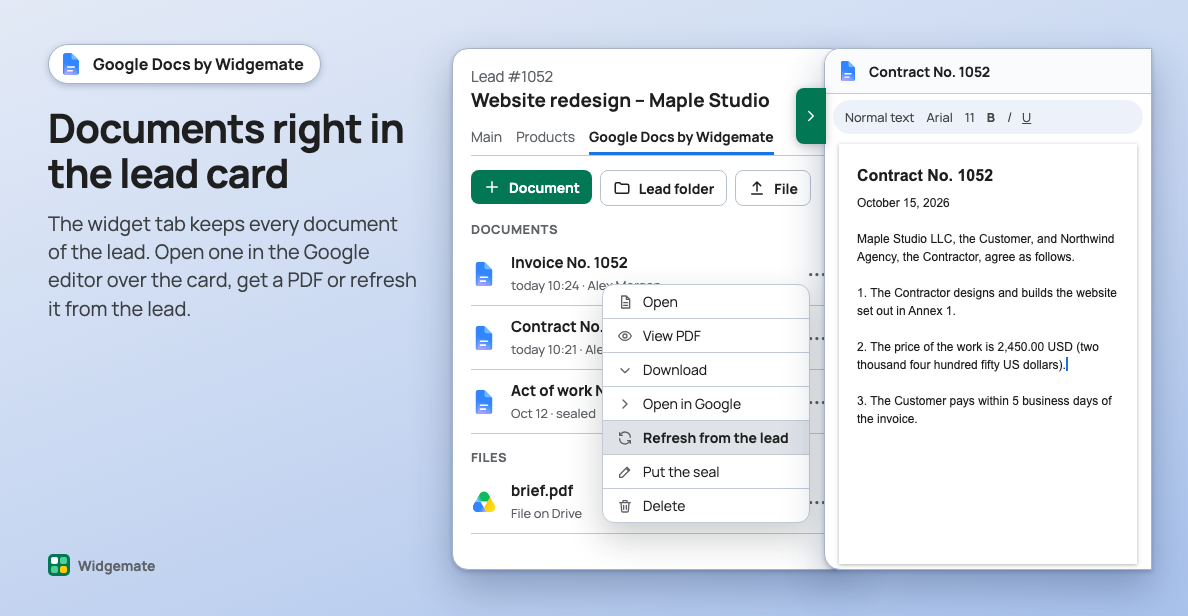
By hand. In the lead card open the widget tab, press "+ Document" and pick a template. The document appears in the list: open it in Google, view it as a PDF, download it, refresh it from the lead if the data changed, or put the seal.
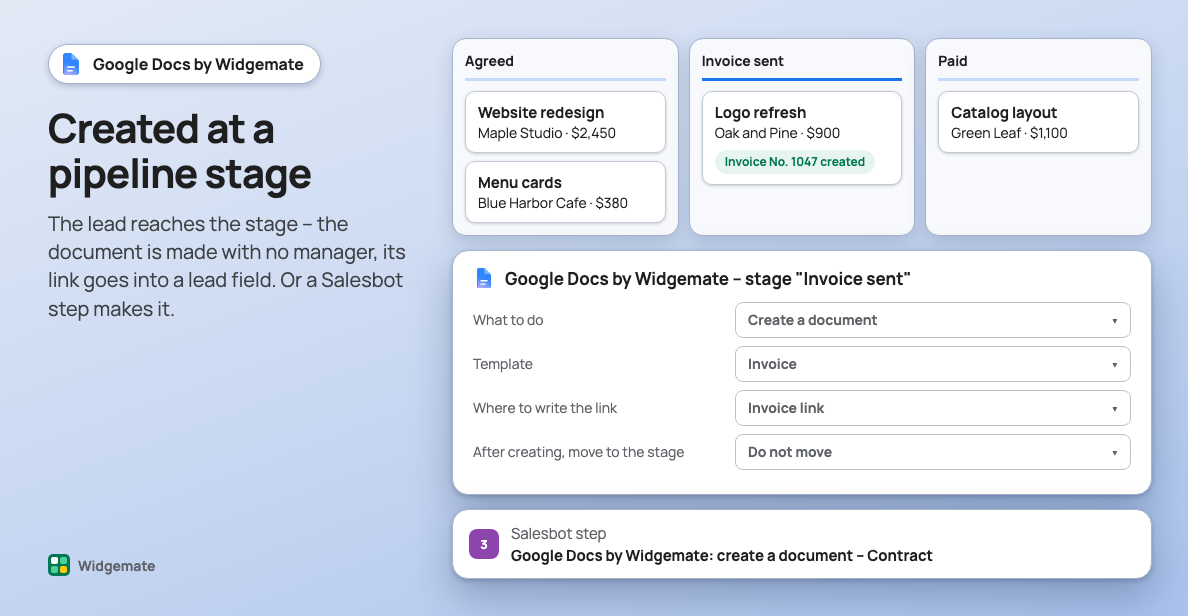
Automatically. Add the widget action to a pipeline stage in Digital Pipeline or a Salesbot step: pick the template and the lead field for the document link. The lead reaches the stage and the document is made by itself; the lead can move on right away.
Seal and signature
Add a picture of the seal or signature and a text label. In the template the label sits where the seal belongs; the widget replaces it with the picture – by hand from the card or right when the document is made on a stage.
If something goes wrong
- A variable is left in the document. Check that it was copied from the builder unchanged and that the lead field is filled in.
- The products table is empty. Product variables must sit in one table row, and the products must be added to the lead.
- The lead data changed. Press "Refresh from the lead" next to the document – the widget fills it in again.
The widget for this
Updated 16 November 2026