 widgemate
How to take payments in Kommo: links, statements, bank details
Payments in Kommo can be taken so that no manager matches the bank statement by hand: the payment link is made from the lead, and the payment finds its lead in the bank statement by itself. Here are three ways – from the simplest to fully automatic.
Way 1. Bank details and manual matching
The manager sends the customer the account details, the customer pays, and the manager later looks for the payment in the statement and marks the lead as paid.
- Pros: nothing to set up.
- Cons: matching takes time every day, payments with a wrong purpose get lost, the lead stage is changed by hand.
Fits while there are a few payments a week.
Way 2. A payment link from the lead
The manager creates a link right in the lead card. The customer opens a page with the amount and the payee details and picks the bank themselves. The amount and payee come from the lead, so the details can't be wrong. The lead shows what is paid and what is left.
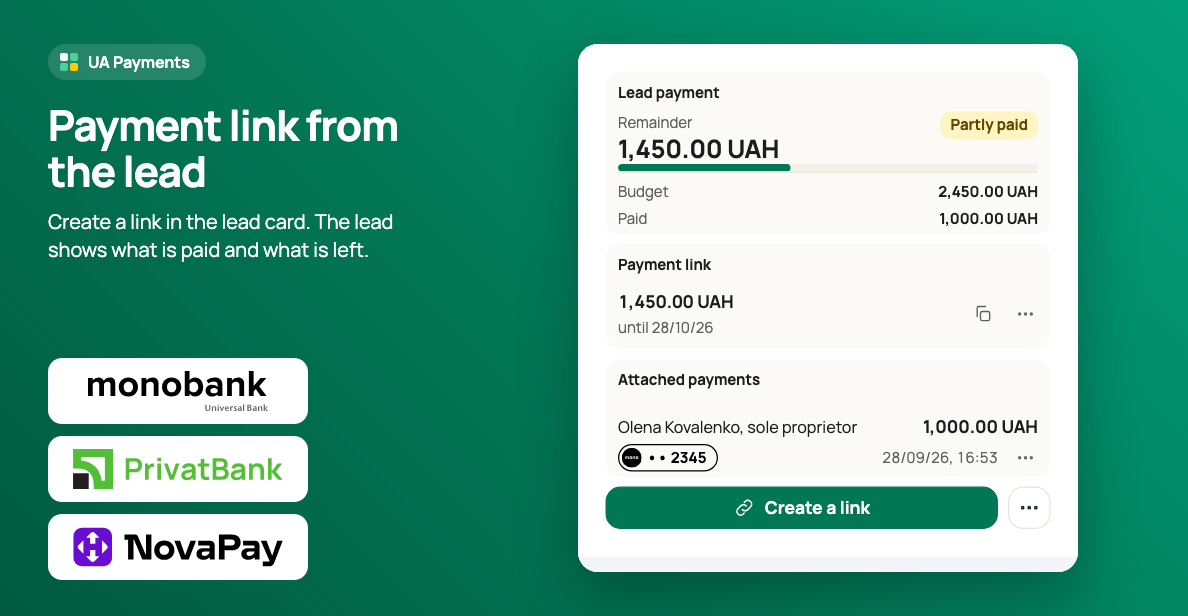
The link can go out with no manager too: by a Salesbot step to the customer's messenger, or by a Digital Pipeline action on a pipeline stage.
Way 3. The payment finds its lead
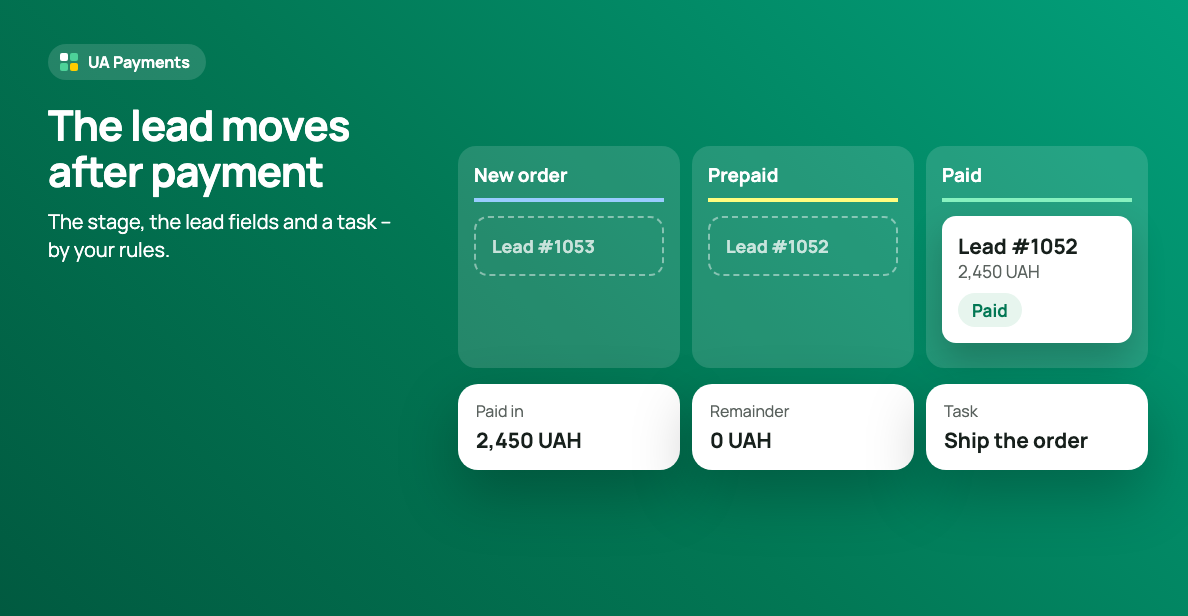
The widget reads the statements of connected monobank, PrivatBank or NovaPay accounts and looks for the lead by the amount and payment purpose – such as the order number. Once found, the lead gets a payment note, moves to your stage, and the manager gets a task.
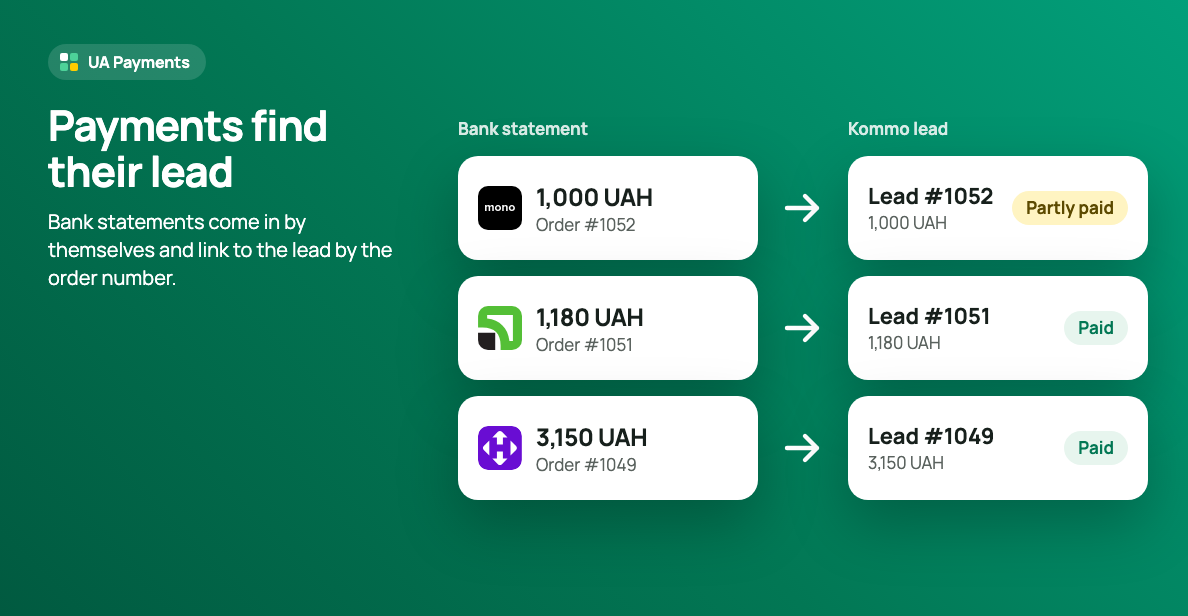
This way works together with the second one: the link sets the right payment purpose, and the statement confirms the money arrived.
Several payees
Bank accounts can be split by payee: each lead is paid to the right sole proprietor or company, and an account you keep hidden is never shown to customers.
Fiscal receipt
With the Checkbox or Vchasno.Kasa widget next to it, every payment matched to a lead gets a fiscal receipt right away.
How to choose
- A few payments a week – bank details and manual matching.
- More payments a day than you want to match by hand – the link from the lead and matching from the statement: the UA Payments widget does both.
- A receipt for every payment – add a cash register widget.
What you need for ways 2 and 3
- A Kommo account with admin rights.
- An account at monobank, PrivatBank or NovaPay and access to it: a monobank token, a PrivatBank key or NovaPay access.
The widget for this
Updated 16 November 2026